Get access
Every request to the API carries an API key. Keys are created in the Energi.AI dashboard by a user of your company, and each key acts on behalf of the user who created it.
What you need
- API access in your company’s plan. API keys are part of the Professional and Enterprise plans. If your company is on another plan, contact support@energi.ai.
- The Admin or Owner role in each company the key should reach.
Manage API keys appears in your profile menu while the company you have open in the dashboard meets both. If it is missing, switch to such a company.
Create an API key
Open the API keys page
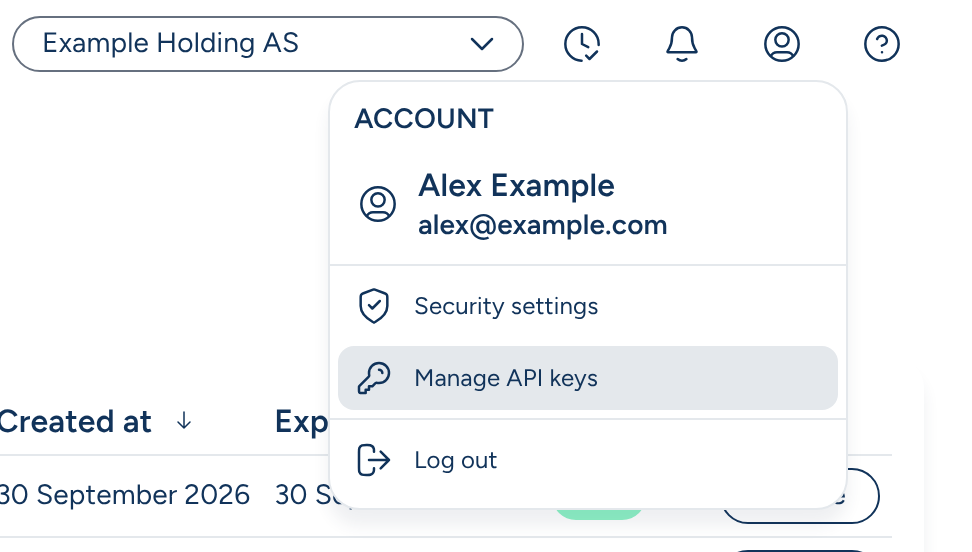
Sign in to dashboard.energi.ai dashboard.us.energi.ai , open the profile menu at the top right and choose Manage API keys.
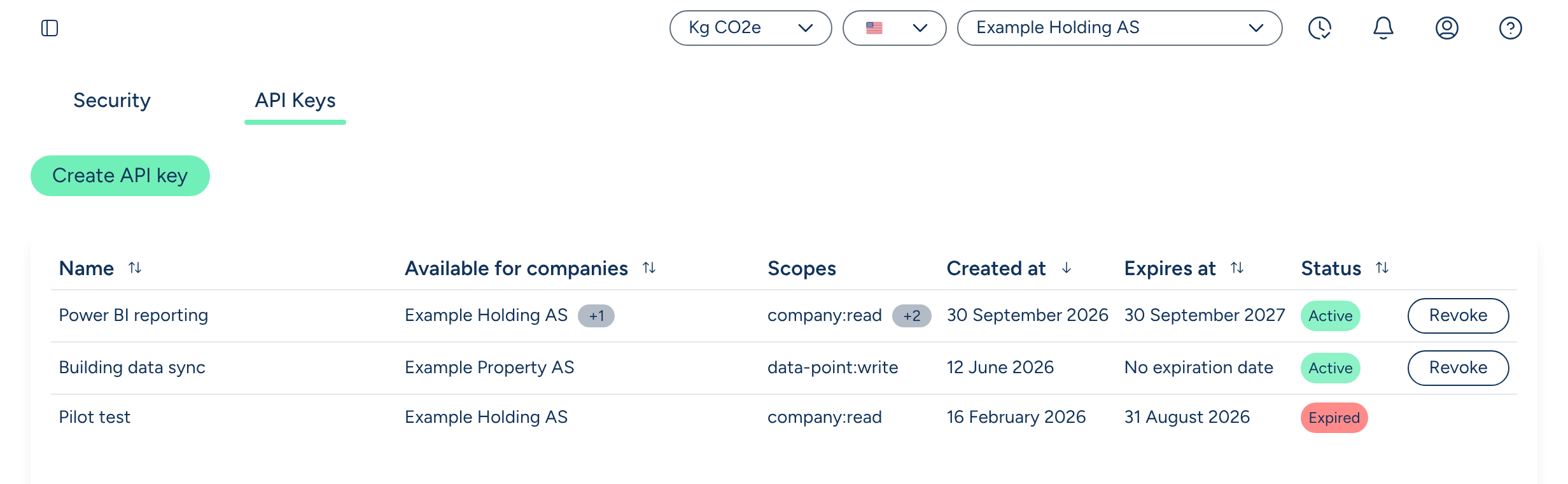
The page lists the keys you have created, with their scopes, companies and status. Choose Create API key.
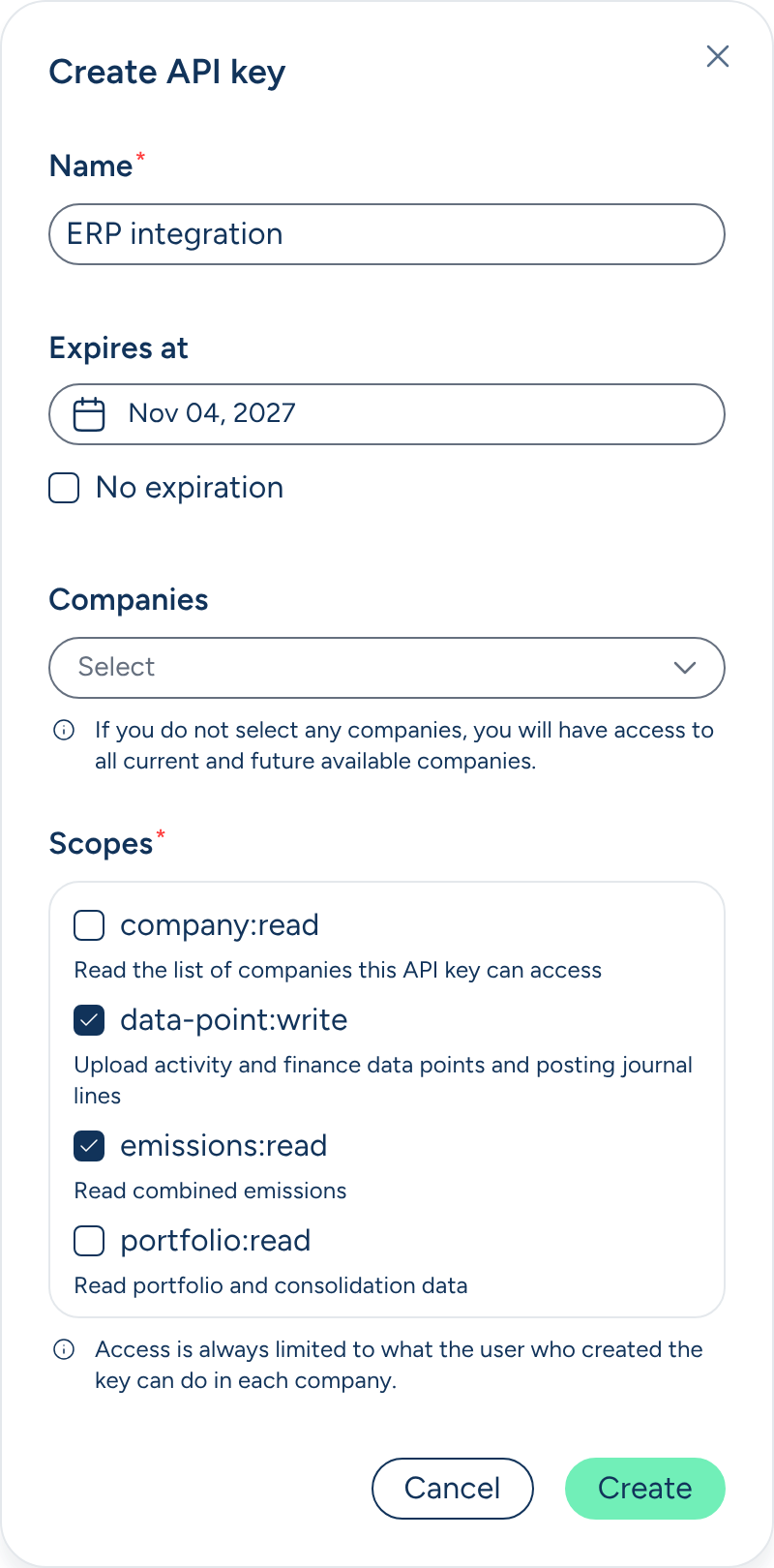
Fill in the form
- Name: what the key is for, so you recognise it later, e.g.
ERP integration. - Expires at: one year from today by default. Pick any day from tomorrow up to 10 years ahead, or tick No expiration.
- Companies: the companies the key may reach. The list offers the companies where you are an Admin or Owner. Leave it empty to cover all of them, including companies you become Admin or Owner of later.
- Scopes: what the key may do. Choose at least one; see Scopes below.
Copy the key
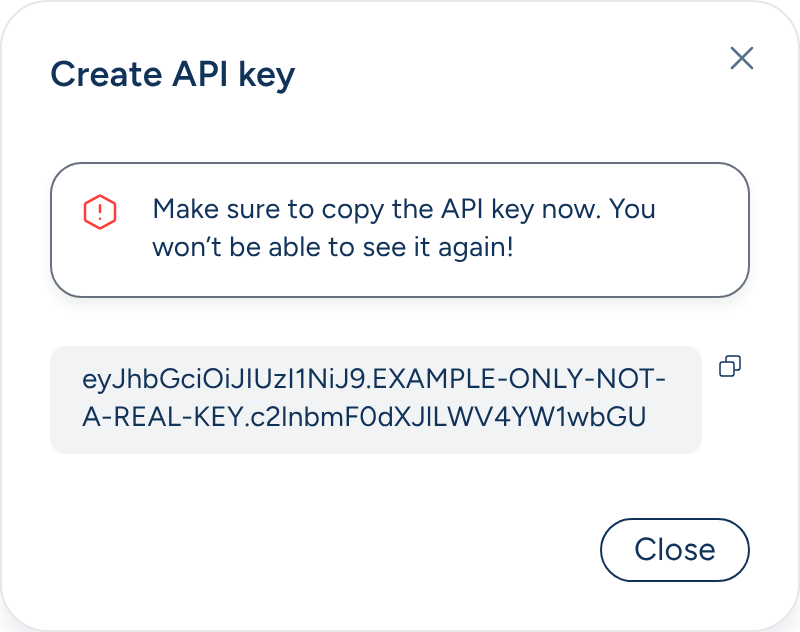
Choose Create. The key is shown once: copy it now and store it somewhere safe. You can’t see it again; if you lose it, create a new key.
Next, make your first call in the Quickstart.
Scopes
A scope allows one kind of operation. Give a key only the scopes its integration needs.
| Scope | Allows | Operations |
|---|---|---|
company:read | Listing the companies the key can access | listCompanies |
data-point:write | Uploading activity and finance records | createDataPoints |
emissions:read | Reading a company’s emissions | getCompanyEmissionsSummary |
portfolio:read | Reading portfolios and their combined emissions | listPortfolios, getPortfolioEmissionsSummary |
Add company:read to most keys: it is how an integration finds the company ids every other operation needs.
What a key can do
A key never does more than the user who created it. On every request it may do only what its scopes allow and what that user can currently do in the company, which includes what the company’s plan offers. So a key stops working for a company, with a 403 FORBIDDEN, when:
- the company isn’t one of the key’s companies;
- its creator is no longer an Admin or Owner there;
- the company’s plan no longer includes what the scope does.
The same key keeps working for its other companies.
A key’s name, scopes and companies can’t be changed after it is created. To change them, create a new key and revoke the old one.
Keep keys safe
Anyone who has a key can use it, with all of its scopes. Keep keys out of source code, client-side code and logs; store them in a secrets manager or an environment variable on the server that calls the API. Use one key per integration, so you can revoke one without affecting the others.
Revoke or replace a key
On the API keys page API keys page , choose Revoke in the key’s row. A revoked key is rejected with 401 UNAUTHORIZED from its next request on. A key past its expiry date shows Expired and is rejected the same way.
To replace a key without downtime:
- Create a new key with the same scopes and companies.
- Deploy it to your integration.
- Revoke the old key.